
Create a ticket
What this guide helps you do
Section titled “What this guide helps you do”Create a ticket for building staff and understand every step in the Create Ticket modal.
Use this guide for common issues such as:
- elevator outage
- water leak
- lost access badge
- heating problem
- noisy extractor fan
- shared laundry problem
- common area cleaning issue
Who can do this
Section titled “Who can do this”Tenants with an active Sicket account.
Where to find it in Sicket
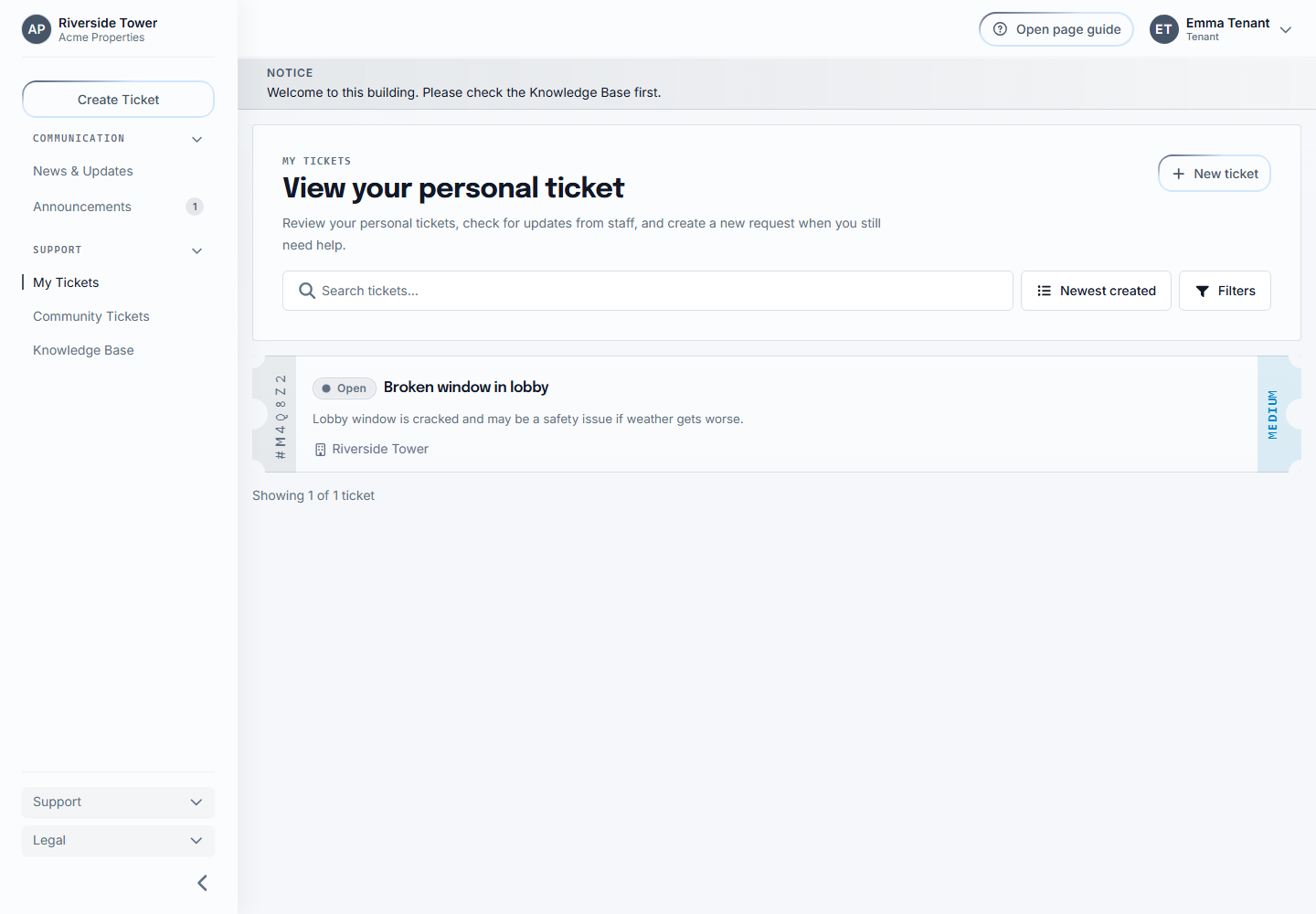
Section titled “Where to find it in Sicket”Open the tenant dashboard and choose Create Ticket or New Ticket.
You can also start from My Tickets when the page includes a new ticket button.
Before you start
Section titled “Before you start”Prepare:
- a short title
- a clear description
- where the issue is happening
- whether the issue is private or shared
- photos or files if they help explain the issue
Step 1: Describe the issue
Section titled “Step 1: Describe the issue”The first panel collects the main ticket information.
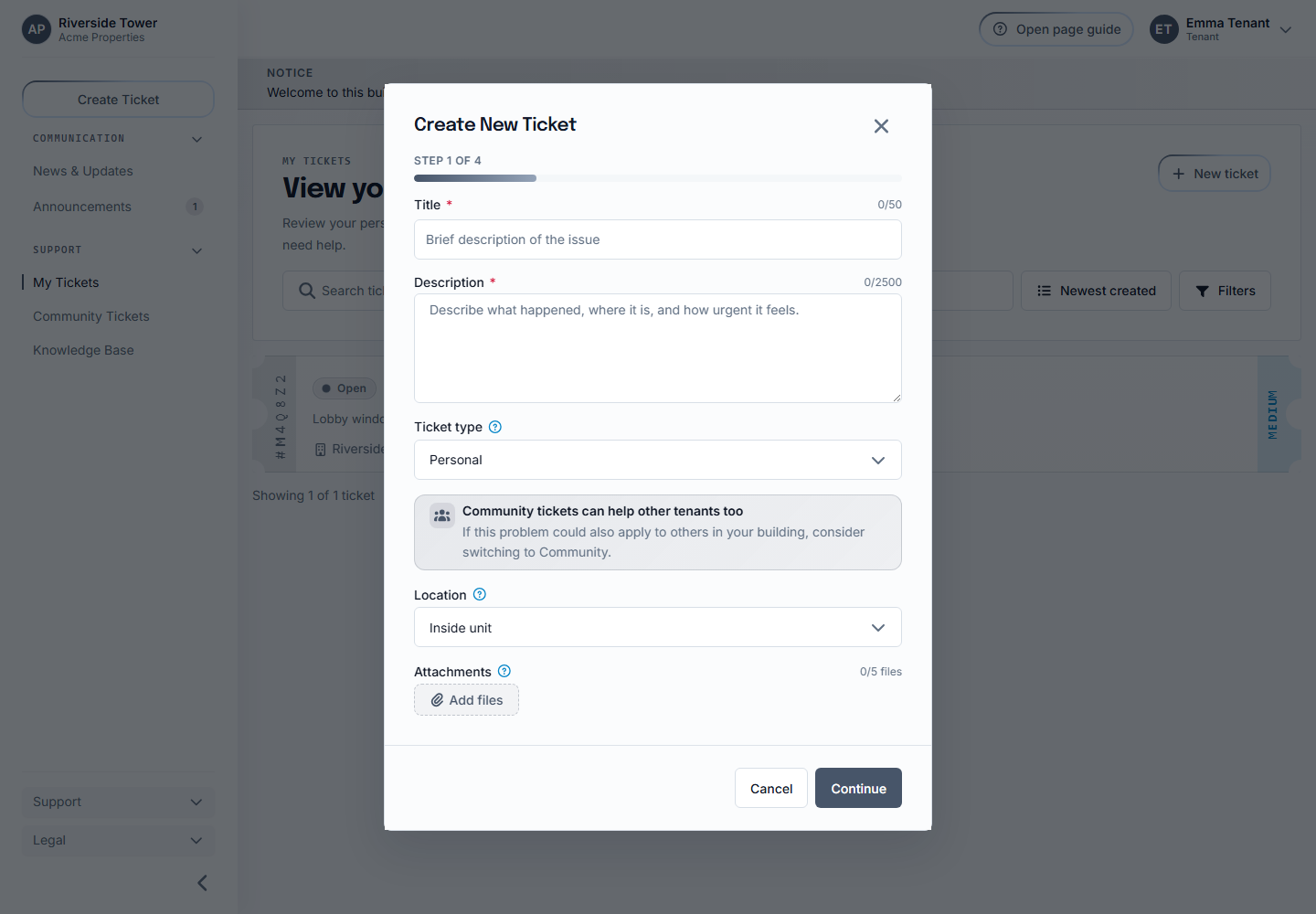
The title is a short summary of the issue.
Good examples:
Elevator stopped workingWater leaking under kitchen sinkFront door badge reader not respondingHeating not working in bedroom
Avoid titles that are too vague, such as Help or Problem.
Description
Section titled “Description”The description explains what happened and what staff should know.
Useful details include:
- when the issue started
- whether it is still happening
- whether it affects only you or shared areas
- what you already tried
- whether there is visible damage or safety risk
Example:
The elevator stopped working yesterday evening. It opens on the ground floor but does not move. I have been using the stairs since then.
Location type
Section titled “Location type”Location type tells staff where the issue is happening.
Common choices:
Inside unit: use this for issues inside your own apartment or room.Common area: use this for shared areas such as lobby, hallway, elevator, entrance, laundry room, storage room, or bike area.Building exterior: use this for outside doors, facade, parking, or shared outdoor space where available.
Ticket type
Section titled “Ticket type”Ticket type controls visibility.
Personal means the ticket is private between you and staff.
Community means the ticket can be visible to other tenants in the same building when community visibility is available.
Use community tickets for shared issues such as elevator outage, entry door problems, shared laundry problems, hallway lighting, or common area cleaning.
Use personal tickets for issues inside your unit or anything private.
Anonymous option
Section titled “Anonymous option”Anonymous posting hides your identity from other tenants on community tickets.
Staff can still see the information they need to handle the issue.
You can still find your own anonymous ticket in My Tickets, but other tenants cannot identify you from it.
Tenant discussion option
Section titled “Tenant discussion option”Tenant discussion controls whether other tenants can comment on a community ticket.
Enable discussion when tenant input may help, such as confirming whether an elevator outage affects others.
Disable discussion when the issue should be visible but not become a tenant conversation.
Attachments
Section titled “Attachments”Attachments help staff understand the issue.
Good attachments:
- photo of a leak
- photo of a broken lock
- screenshot of an error
- short relevant document
Uploads are checked for allowed file type, size, and plan storage limits.
Step 2: Review suggested answers
Section titled “Step 2: Review suggested answers”Sicket may show relevant active announcements, resident-visible incidents, or building updates before you submit.
This step helps avoid duplicate tickets when staff already published an answer.
Examples:
- If you enter
Elevator not working since yesterday, Sicket may show an active announcement about an elevator outage. - If you enter
What do I do when the elevator is stuck?, Sicket may show a knowledge base entry explaining which stairwell to use. - If you enter
Lost access badge, Sicket may show a knowledge base entry about replacing badges.
Suggested announcements
Section titled “Suggested announcements”Announcements are active building messages from staff.
If an announcement already explains the issue, read it before continuing.
Suggested incidents
Section titled “Suggested incidents”An active incident means staff is already coordinating a wider building issue. Read it to understand the current status. You can still submit a personal ticket when staff needs details about your home.
No relevant results
Section titled “No relevant results”If Sicket says no relevant updates were found, continue with the ticket.
Step 3: Review similar community tickets
Section titled “Step 3: Review similar community tickets”Sicket may show similar community tickets from your building.
This helps prevent duplicate community tickets.
Examples:
- Another tenant already reported the elevator outage.
- A shared laundry machine problem is already being handled.
- Staff already responded to a front entrance access issue.
What to do if a similar ticket exists
Section titled “What to do if a similar ticket exists”Open or read the similar ticket if it looks relevant.
If it describes the same issue, follow that ticket instead of creating a duplicate where possible.
If your issue is different, continue creating your ticket.
Step 4: Review AI assessment
Section titled “Step 4: Review AI assessment”Sicket may suggest a priority and category.
AI category suggestion
Section titled “AI category suggestion”The category groups the issue for staff.
Examples:
- elevator
- plumbing
- access
- heating
- cleaning
- maintenance
AI priority suggestion
Section titled “AI priority suggestion”The priority helps staff triage.
Examples:
- low for non-urgent questions
- medium for normal maintenance
- high for serious disruption
- urgent for safety or critical access issues
AI suggestions are not final decisions. Staff workflows and system validation remain the source of truth.
You still choose the location yourself. Select the place that best describes where the issue occurs; AI does not replace this choice.
Step 5: Final review and submit
Section titled “Step 5: Final review and submit”The final panel shows a summary before submission.
Review:
- title
- description
- ticket type
- location type
- anonymous setting
- tenant discussion setting
- attachments
- suggested category
- suggested priority
Select Submit when the summary is correct.
The final review can also show relevant Knowledge Base answers. Open an answer if it may solve the issue; otherwise submit the ticket.
What happens next
Section titled “What happens next”After submission:
- Sicket creates the ticket.
- You receive a ticket code.
- Staff can review the ticket.
- You can follow progress in
My Tickets. - If it is a community ticket, other tenants in your building may see it depending on visibility settings.
- Ticket attachments remain available only to you and authorized staff. Other tenants see the file count, not the files.
Visibility summary
Section titled “Visibility summary”Staff can see the details required to handle the ticket.
Other tenants cannot see personal tickets.
Other tenants should not see your residential unit information on community tickets.
Anonymous community tickets hide your identity from other tenants.
Common issues
Section titled “Common issues”If no suggested answers appear for an obvious issue, continue creating the ticket. Staff can still handle it.
If a file does not upload, check whether it is an allowed file type and size.
If you are unsure whether to choose personal or community, choose personal.