
Add knowledge base entries
What this guide helps you do
Section titled “What this guide helps you do”Add a reusable question and answer to the knowledge base.
Who can do this
Section titled “Who can do this”Organization admins and authorized landlords on plans with knowledge base access.
Where to find it in Sicket
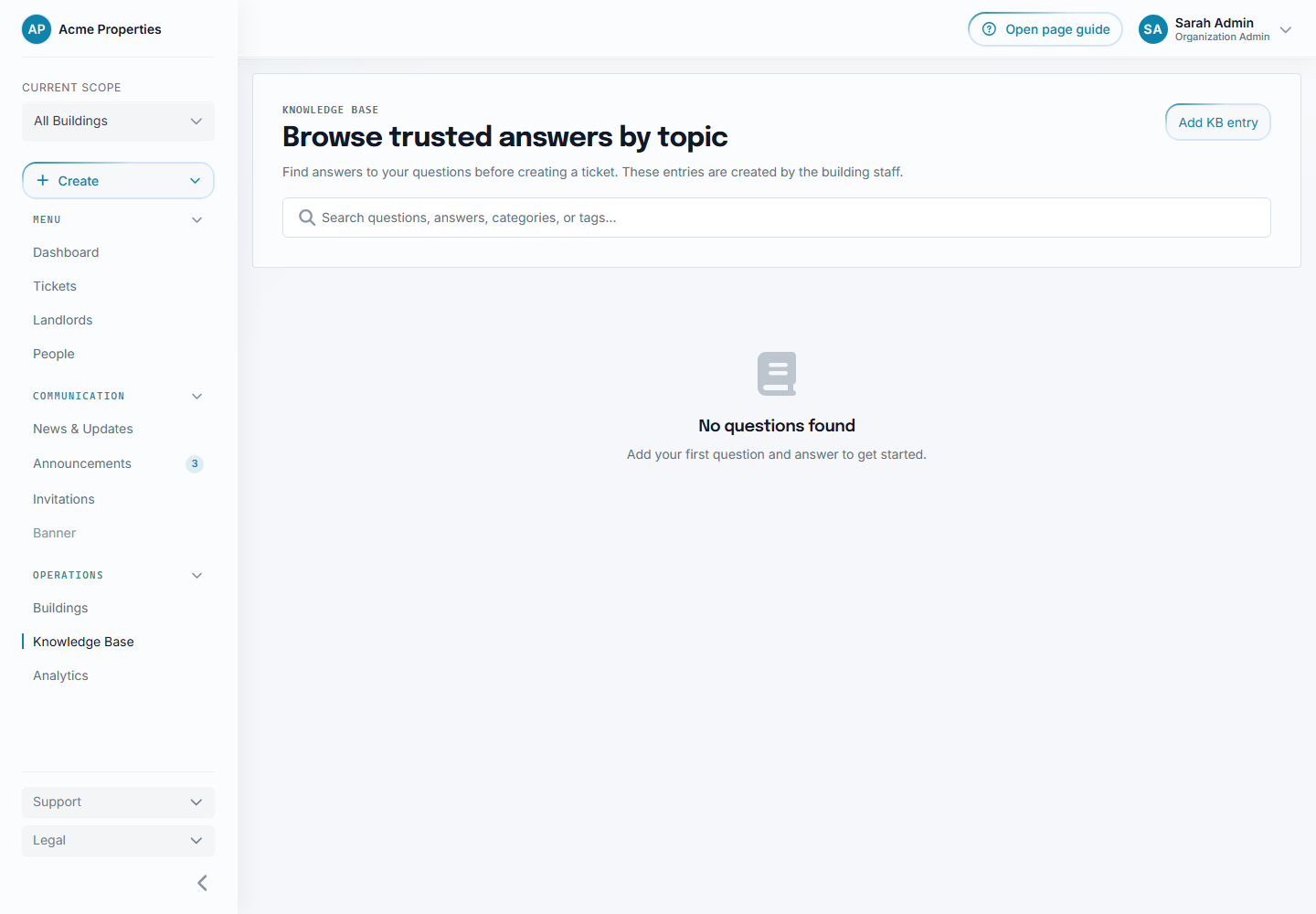
Section titled “Where to find it in Sicket”Go to Knowledge Base, then choose Add Entry.
Step-by-step
Section titled “Step-by-step”- Open
Knowledge Base. - Choose
Add Entry. - Enter the question.
- Enter the answer.
- Continue to building.
- Select the building where the answer should be available.
- Review the AI classification note.
- Create the entry.
Field-by-field explanation
Section titled “Field-by-field explanation”Question is the tenant-facing issue or question, such as What should I do when the elevator is out of service?.
Answer is the practical guidance tenants should follow.
Building controls where the entry is visible. Every entry belongs to exactly one building. If one building is selected in the sidebar, the modal defaults to that building.
AI classification means Sicket can assign category and tags automatically. Categories should come from a controlled set. Tags can be more flexible.
What happens next
Section titled “What happens next”The entry can appear in the knowledge base and may be suggested when a tenant creates a related ticket.
After creation, Sicket opens the matching category and brings the new entry into view so the result is visible.
The Add Entry button and final review show the remaining organization plan allowance. Professional includes 100 entries total across all buildings, not 100 for each building. Organization admins decide how to distribute that shared allowance.
Open an entry to read the full answer and record whether it was helpful. Staff can review usage, usefulness, last-reviewed information, and stale-answer indicators where available.
Common issues
Section titled “Common issues”If tenants cannot see the entry, check the building scope.
If the category looks wrong, edit the entry or improve the question and answer so the subject is clearer.
Import and export controls are intended for desktop administration and are hidden on smaller mobile layouts.